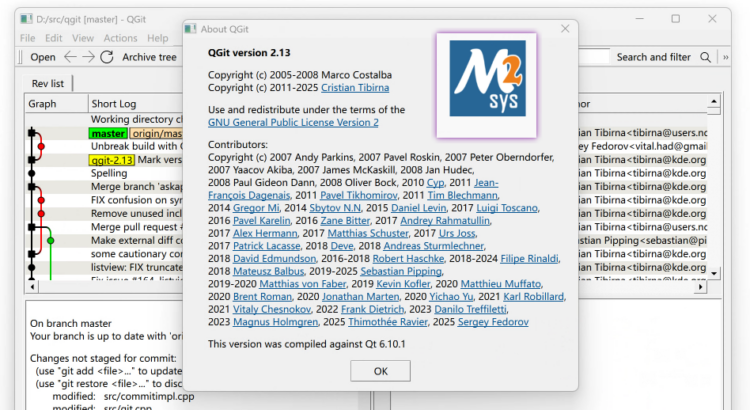
可视化对于git工具的使用很重要,尤其在使用命令行与git仓库进行交互时,额外的一个分支历史可视化窗口可以协助使用者定位目前的工作状态,避免在分支和提交的海洋中迷失。对我个人而言,我最喜欢一款不算大众的git可视化软件:qgit。它使用Qt与C++编写,功能简单,在Linux桌面环境中轻快小巧而能够满足我的git可视化需求。一个美中不足的问题是其原作者并未提供Windows平台的原生qgit可执行程序,只有源代码,且其构建文档各处也有过时问题。鉴于我的家中工作站是Windows 11桌面,本文记录我在Windows平台上编译该款软件的操作。
继续阅读作者: hosiet
使用 msmtp 和 GMail 账号部署服务器 SMTP 发信(2024年)
实验室新添加的服务器需要一个基本的邮件通知功能,也就是在某些事件发生时能够向外发送电子邮件进行通知。众所周知,配置电子邮件的基础设施通常会很麻烦。因此,我在寻找解决方案时有以下三点考虑:
- 服务器程序发送电子邮件的接口应该通用。因此,我优先考虑使用提供了兼容
/usr/sbin/sendmail命令的软件。 - 避免额外注册邮箱账号的麻烦。因此我选择重复利用我已有的 GMail 账号。
- 考虑 GMail 的特有限制。由于使用 Google 主密码进行 SMTP 发信身份认证的操作已经被 GMail 认为不安全而禁用了,所以这次必须变相使用用户名和密码完成 SMTP 配置。Google 提供了一个名为
App passwords的特别功能,能够根据需要创建一个起替代作用的纯文本密码。
我最后选择的解决方案是 msmtp 配合 msmtp-mta 以及 GMail SMTP + App Passwords 组合。整个过程基本是遵循Gmail with an App Password这篇英文博客文章来部署的。
本文的配置在2024年10月有效,但无法保证永远生效。请在进行配置之前先行验证方法的有效性。
继续阅读

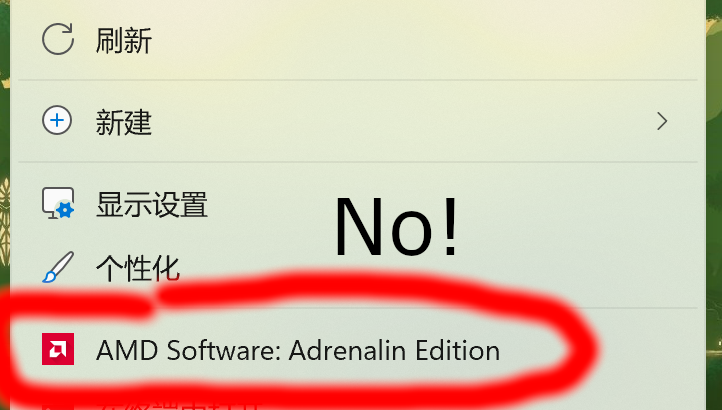
Hide “AMD Software” entry in Windows 11 Context Menu (right-click menu)
Background
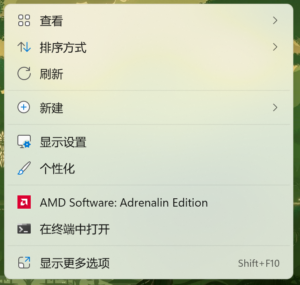
I just bought a Lenovo 14p Gen 3 laptop with preinstalled Windows 11. Since it is an AMD-based laptop, it has an AMD configuration software installed, namely AMD Software: Adrenalin Edition. It provides several useful features for screen display. However, the annoying thing is that it adds an extra entry in Windows 11’s default Context Menu. Luckily, there is a way to block such entry without uninstalling the AMD software.
Steps to hide entry using Regedit
- Open regedit.exe and visit \HKEY_CLASSES_ROOT\PackagedCom\ClassIndex\. There should be several tens of entries (keys) under that, all named after {UUID}.
- Expand all entries you saw in Step 1 and look for the entry containing keyword AdvancedMicroDevicesInc (“AMD”). Once you find it, copy its corresponding UUID string. We will use it in the steps below.
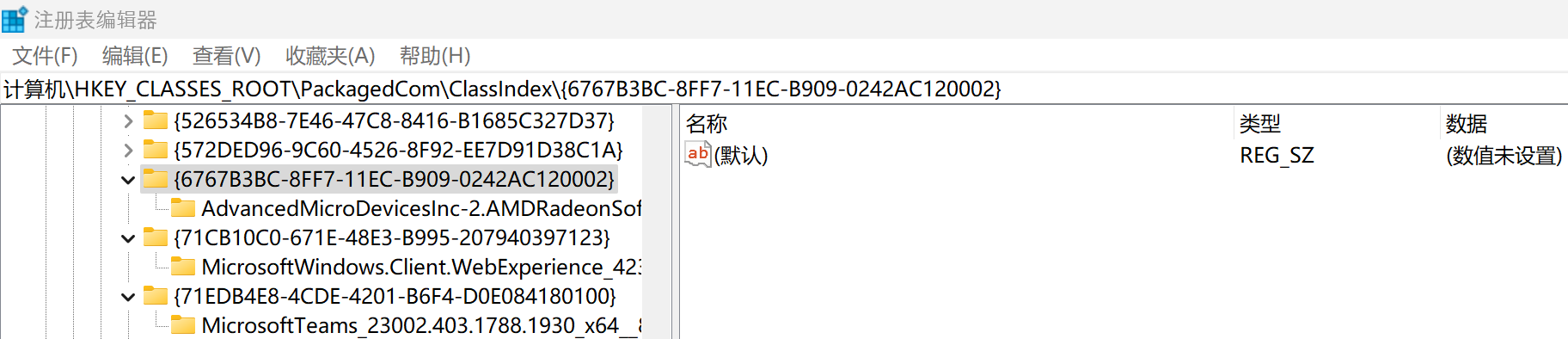
In this case, the UUID starting with 6767... is what we need. - Open regedit.exe and visit \HKEY_LOCAL_MACHINE\SOFTWARE\Microsoft\Windows\CurrentVersion\Shell Extensions\. There should be three keys under Shell Extensions: Approved, Blocked, and Cached. If there is no Blocked key on your system, manually create it by right-clicking Shell Extensions, and create a new key named Blocked.
- Enter Blocked key (which appears as a directory in regedit tool). Under directory Blocked, create a new String (aka type REG_SZ). Rename the String as {UUID}, in which UUID is the same UUID as we found in Step 2.

Example of final result under Shell Extensions\Blocked key - Go back to desktop and try with right click. If everything is done correctly, the AMD Software entry will immediately disappear in the right-click menu.
- If you want to revert our modification, simply delete the value we created in Step 4.
References
- Extending the Context Menu and share dialog in Windows 11. Microsoft.
- How to Remove AMD Radeon Software From Context Menu. This article provides an irreversible way, which inspired my current approach.
- Anyone knows how to remove the AMD software. The reply of user fireball33x provides the hint on finding the correct UUID to block.
- Remove amd software from right click context menu. This is essentially the same approach as in my texts, except that the UUID in this article has changed and in lack of explanation about how to determine the correct “Blocked” UUID.
Quick guide: set up chroot environment and build Debian packages (sbuild version)
TL;DR: Pbuilder-related tools are ineffective and redundant. By installing sbuild and schroot, one can set up clean and reusable chroot environments quickly and use the sole sbuild command to build Debian source packages (using src tree or .dsc files).
Fade away please pbuilder/cowbuilder; long live sbuild!
Quick example
Install tools and preparation
sudo apt update;
sudo apt install sbuild schroot;
sudo mkdir -p /var/lib/sbuild/chroots; # the last component is made by us
sudo chown sbuild:sbuild /var/lib/sbuild/chroots;
Initialize a chroot environment using sbuild-createchroot
# Assume host machine is of x86_64 architecture, create an unstable chroot
sudo sbuild-createchroot unstable /var/lib/sbuild/chroots/unstable-amd64 \
  --alias=sid --alias=UNRELEASED http://deb.debian.org/debian;
Keep (s)chroot environment updated
sudo sbuild-update -ud unstable;
Build a Debian package using sbuild with previously created chroot environment
# If you want to drop superuser privilege, add yourself into sbuild group first.
# Other settings might be needed. See sbuild-adduser(1).
# #################################
# Option 1: have proper Debian source package
sbuild -A -v -d unstable /path/to/package.dsc
#
# Option 2: chdir into extracted source tree with .orig tarball in parent directory
sbuild -A -v -d unstable
# Option 3: integrate with git-buildpackage (gbp)
gbp buildpackage --git-builder=sbuild -A -v -d unstable
#
# Notes:
# 1. If you need source-only changes (https://wiki.debian.org/SourceOnlyUpload),
#    append "--source" to sbuild's invocation
# 2. If you want to sign your build, append "-kxxxxxxxx"
#    to your sbuild's invocation, where xxxxxxxx is you gpg keyid
How to destroy schroot environment properly
If you do not wish to use schroot and sbuild anymore, you may use the following tool to properly destroy the schroot environment:
# Destroy the chroot instance named "unstable"
sudo sbuild-destroychroot unstable
# This script actually does nothing other than providing instructions.
# You will need to follow the printed instruction and safely
# destroy the schroot instance by yourself.
References
- sbuild(1)
- schroot(1)
- sbuild-createchroot(8)
- sbuild-adduser(8)
- sbuild-update(1)
- sbuild-destroychroot(8)
To be continued…
Updates
- July 19, 2020: Replace httpredir.debian.org with CDN-enabled deb.debian.org.
- July 19, 2020: Add text related to sbuild-destroychroot.
- July 22, 2020: Remove “sudo” from sbuild invocation. No privilege is needed in this case.
- March 04, 2025: Add the deprecation notice on the transition to sbuild unshare backend.
配合Git为Debian系发行版打包的正确方式
配合Git为Debian系发行版打包的正确方式
Debian这个发行版历史悠久,其软件包管理工具apt和dpkg更是作为其特色沿用至今,在保留严谨传统的同时得到了长足的发展和演进。然而正是由于其不短的历史(虽然还没到三十年,但是这样的时间跨度对于IT行业的产物已经算惊人的长了),Debian的包管理工具不可避免地存在着稍显沉重的历史包袱。一些过去的真理和守则反而成为了现在的累赘,一代又一代地误导着后来者。为了让后来者少走弯路,我在这里记录一些摸索过程中的体会和技巧,希望能够让更多人体会到Debian的魅力所在。
如果你只想了解最佳的工作流的话,请直接翻到最后面查看。但是具体工具的使用方法需要自行查找资料,或者回到前文寻找相应的内容。
继续阅读
Fast preparation of a source-only upload for Debian
Let’s assume that you find the source code of a software for Debian with a debian/ directory included. How to prepare the .dsc package (Debian source package) used for upload quickly? I will show you here.
- Extract the software into a certain directory, let’s say foobar/.
- Repack original tarball and exclude debian/ dir using
tar. Rename orig tarball as<PKGNAME>_<PKGVER>.orig.tar.{bz2,gz,lzma,xz}. Note that if your package is Debian native, you should skip this step. cd foobar/dpkg-source -b .(cd ..; debsign ./*.dsc -k<YOUR_GPG_KEY_FINGERPRINT>)dpkg-genchanges -S > ../<PKGNAME>_<PKGVER>.changescd ..; debsign ./*.changes -k<YOUR_GPG_KEY_FINGERPRINT>
All done. You may now upload the source package with dput tool.
二次规划的MATLAB解法:quadprog函数
声明
转载自新浪博客:漂流瓶jz的博客,版权归原作者。
综述
二次规划为非线性规划的一种,若某非线性规划的目标函数为自变量\(x\)的二次函数,约束条件又全是线性的,就称这种规划为二次规划。
继续阅读
被雪藏的大号瑞士军刀:eric6 IDE
作为一个有跨平台强迫症和被Python惯坏的业余伪程序员,我在挑选开发桌面应用的时候果断地选择了PyQt,因为它结合了Python的强大、快速开发的特点与Qt的跨平台性质。
然而常见的图形应用程序大都需要集成开发环境(IDE)以辅助开发,在挑选IDE时我着实费了一番功夫。让我们简单地列一下现在(2016年初)能够排得上名的IDE:
- PyCharm,常见的选择,据说十分强大,然而它是JetBrains公司的产品(意味着你要结合Java使用),也存在商业版,有一种不爽的感觉。
- Eclipse,没用过不做评价。但是还是Java
- Python IDLE,这东西能用?
今天我要推荐的是一款不是那么出名的软件:eric6 IDE。
OpenStreetMap 项目笔记
本篇笔记既是自己在OSM中参与编辑的一个备忘,也可以作为新手入门编辑工作的一个教程。
法律警示
在中国大陆地区参与OpenStreetMap绘制很可能是非法行为。请参阅法律警示页面:WikiProject_China
您需要对自己的行为负责。
继续阅读